Retrobar Troubleshooting Guide
Retrobar is a tool that helps you get a classic style customized taskbar without any hassle. It can bring back the old legacy styles of taskbars from Windows 95-98 to XP Zune Style and Vista. Even though it’s pretty easy to download and use, you might face some difficulties due to compatibility issues or something else. To help you get rid of any problem, we have compiled a list of short troubleshooting methods for beginners and professionals.

Issue 1: Retrobar Refusing to Open
You downloaded the latest version of Retrobar and it worked fine but when you want to change the style the settings window won’t open.
Solution: Right Click Method
If you’re trying to open Retrobar by clicking the Retrobar icon in the system tray or near the Start Menu you’re doing it wrong. What you need to do is:
- Right click on the blank area of the taskbar of Retrobar.
- A small window will pop up showing Properties, Settings or the name of the tool Retrobar.
- By clicking Properties, you can see the settings and change the style or make any changes and it won’t shut down.
- If Retrobar is still unable to open, you can try uninstalling and then reinstalling it.
- Retrobar can also be paused if you’re using other tools such as Open Shell or others. They can prevent Retrobar from opening thus, you need to disable or uninstall these tools.
Issue 2: Start Menu Not Opening
After multiple attempts the Start Menu still won’t open. You tried clicking the Windows Key but it didn’t work as well and only the system tray pops up.
Solution: Disable Other Tools
The most common fix that you can do is to disable or uninstall other tools that might be interfering with Retrobar. Open Shell is one of the main culprits in this. But if it didn’t work, you can also try unlocking the Windows Key on your keyboard by:
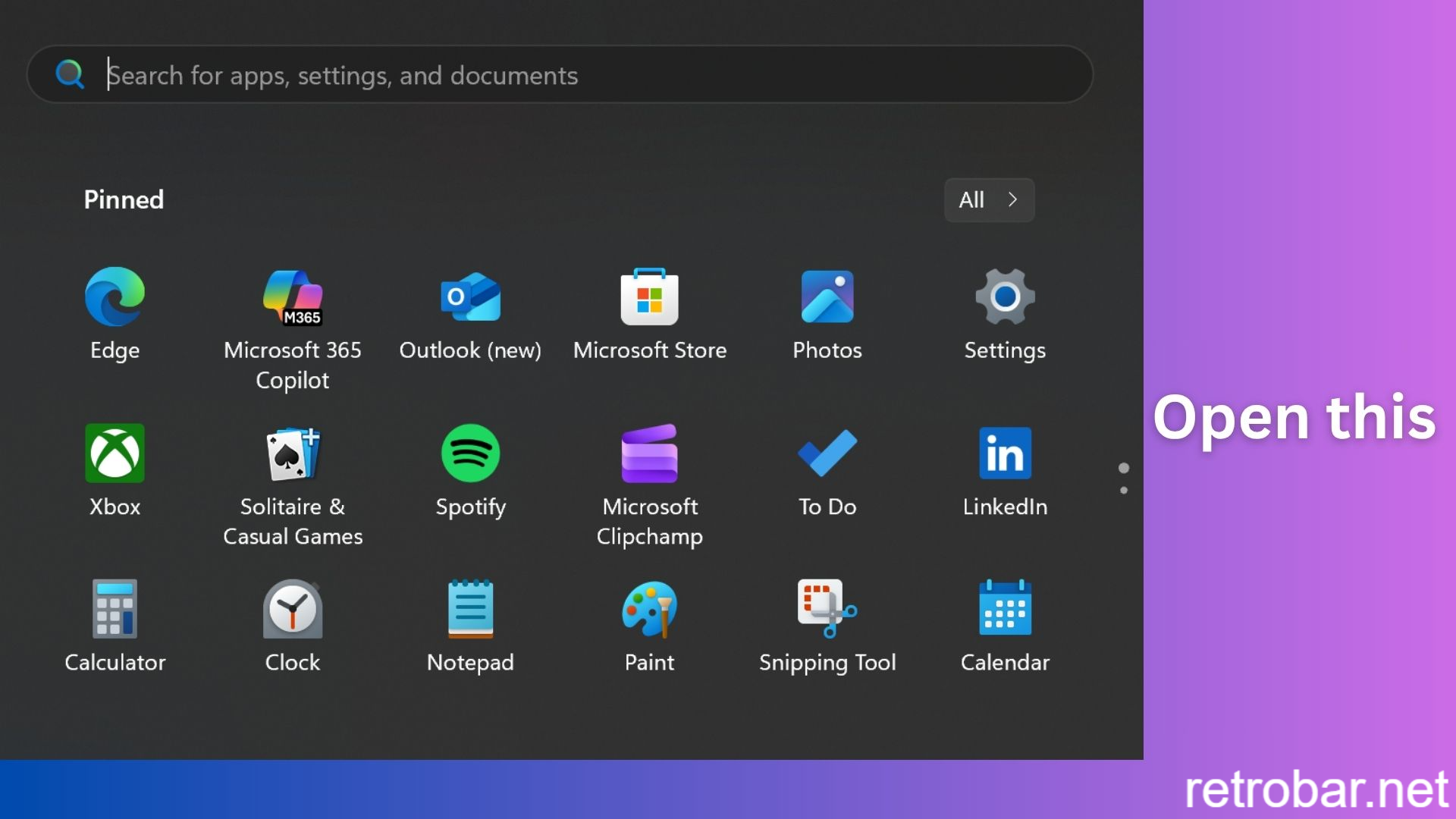
- Press the Fn key and the Windows button together to unlock the Windows key on the keyboard.
- If your Windows key is locked, you can’t open the Start Menu from the keyboard or the Start Button on your screen.
Issue 3: Slow Start Up
It takes a few seconds before the actual Retrobar taskbar appears. You see the default taskbar first after opening your PC and after the Retrobar starts the customized theme appears.
Solution: Use Task Scheduler
- Press the Windows key and type Task Scheduler.
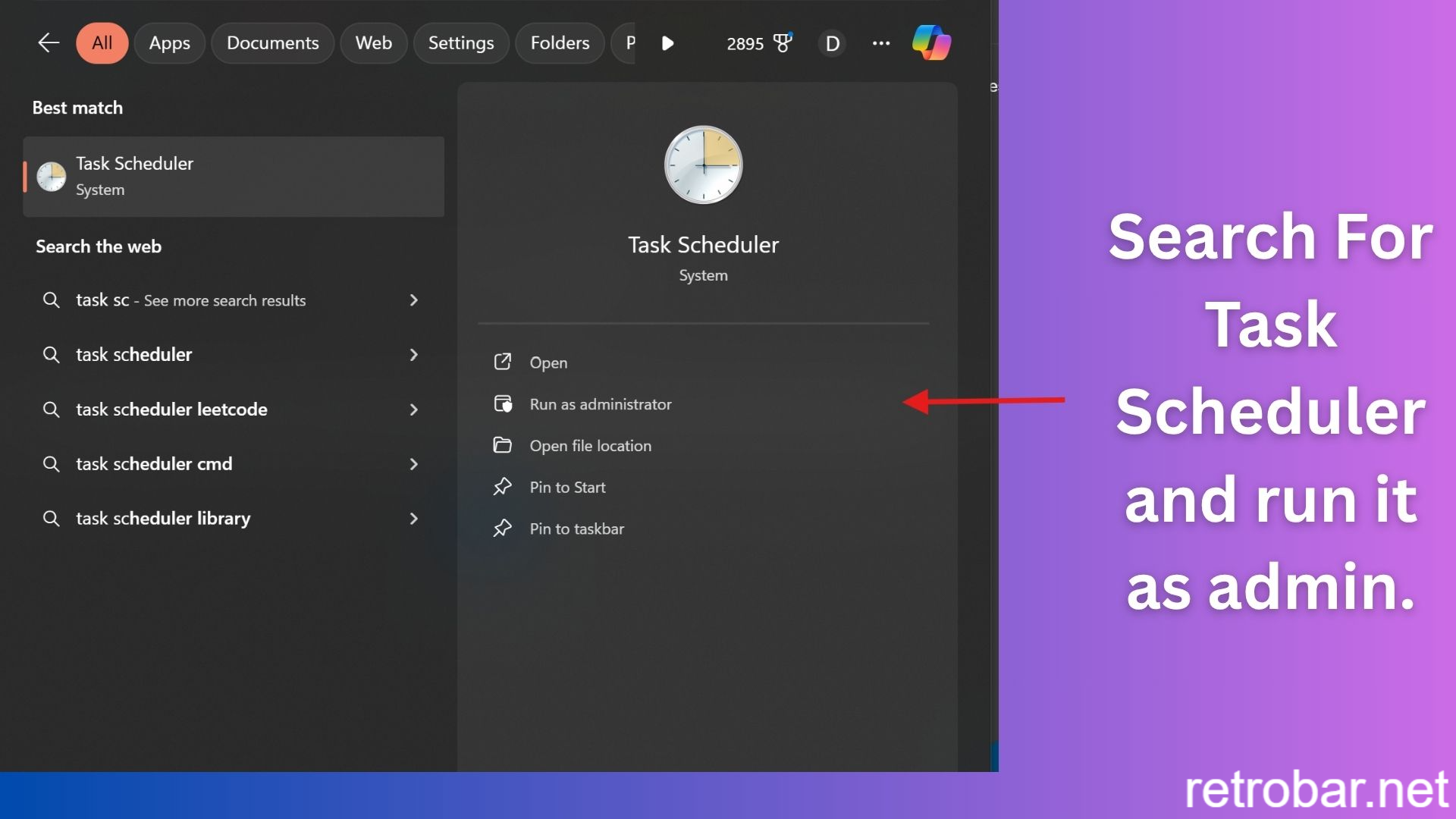
- On the right you can find Actions, from there click Create Task (not Create Basic Task)
- Enter the name: Start Retrobar at Login and if you want you can add a description but it’s optional.
- Select Run only when user is logged on.
- Check the box of Run with Highest Privileges to give the necessary permissions to Retrobar.
- Set this for your operating system whether it’s Windows 10 or 11.
- Now click New.
- There will be a dropdown with ‘Begin the task’ in which you should select ‘At log on’.
- Choose ‘Any User’ if you want anyone to run the program, or select a specific user if you only want to run it for your account.
- Check the box: Delay task for and select 30 seconds to avoid any future issues with Retrobar.
- Click Ok.
- After this click New again and make sure you select Start a Program.
- Click Browse and select Retrobar.exe.
- Leave Arguments and Start in and select OK.
- Check ‘All tasks to be run on demand”. If you’re having an issue where Retrobar opens up multiple times do this:
- In “If the task is already running then the following rule applies” select Do not start a new instance.
- Click Ok.
- Log off the Windows and log back in and the issue will be solved.
Issue 4: All Pinned Icons Are Invisible
After adding pinned icons to the taskbar the icons disappeared or were showing a blank space. Even after stopping the Retrobar.exe process and restarting File Explorer, the issue wasn’t fixed.
Solution: Forcing Windows to Delete And Rebuild Icon Cache
- To fix invisible icons create a batch file and paste this command:
taskkill /f /im retrobar.exe
taskkill /f /im explorer.exe
cd /d %userprofile%\AppData\Local
del IconCache.db /a
start explorer.exe
- Save it with the .bat extension
- Now right click the new batch file and Run as Administrator.
- After this, the taskbar will reappear but do not open Retrobar right away.

- Go to: %userprofile%\AppData\Local in the File Explorer search bar or in the Windows Run window.
- Restart your PC.
- Now relaunch Retrobar and the problem will be fixed and the pinned icons will be visible.
Issue 5: Retrobar Disappears Randomly
While playing games you notice that the taskbar is not visible and even after shutting it down it still does not appear. After pressing the Windows key and moving the cursor on the taskbar, you still face the same issue. Restarting your PC isn’t helping as well.
Solution: Enable Debug Logging
- Go to Retrobar Settings.
- Open Properties.

- Go to Advanced.
- Enable Debug logging in.
Issue 6: Retrobar Not Opening
You installed Retrobar and while launching it shows as unavailable or requires .NET Core.
Solution: Get the .NET Installer
- Search for .NET 6.0 or the latest 8.0 version and make sure you have 64 bit (x64) version for newer PCs.
- Under the column of .NET Desktop Runtime or Run Desktops Apps, find the Windows Installer.
- Click the 64 bit (x64) version and download it.
- Run the .exe file by double clicking it.
- Follow the instructions and Agree to the license agreement and Install it.
- Click Finish and restart your PC.
Sometimes, you won’t need the .NET core and it’ll be downloaded on its own, but there might be a few instances where the file requires the .NET Core so you need to have it to avoid any future problems.